HOW TO GET INDIAN PASSPORT
------------------------------------------------------------------------------------
Fees charged
for issuing Passport
1500 - Fresh or Renew
passport (36 pages) of 10 years validity.
- 2000 - Fresh or
Renew passport (60 pages) of 10 years validity.
- 3500 - Fresh or
Renew passport (36 pages) of 10 years validity under thatkal
scheme.
- 4000 - Fresh or
Renew passport (60 pages) of 10 years validity under thatkal
scheme.
- 1000 - Fresh
passport for minors (below 15 years of Age) of 5 years validity or
till the minor attains the age of 18 which ever is
earlier.
- 3000 - Duplicate
passport (36 pages) in lieu of lost, damaged or stolen
passport.
- 3500 - Duplicate
passport (60 pages) in lieu of lost, damaged or stolen
passport.
Indian passports
can also be issued outside India, for which fees vary per
country.
Passport
Note
The passports contain
a note from the issuing state that is addressed to the authorities
of all other states, identifying the bearer as a citizen of that
state and requesting that he or she be allowed to pass and be
treated according to international norms. The note inside of Indian
passports states:
These are to
request and require in in the name of the
President of the Republic of India all those whom it may concern to
allow the bearer to pass freely without let or hindrance, and to
afford him or her, every assistance and protection of which he or
she may stand in need.
By order of the President
of the Republic of India
The note bearing
page is typically stamped and signed by the issuing authority in
the name of the President of Republic of India.
New Process for
Online Appointment Booking
1.
Introduction
The process for
booking PSK appointments through Passport Seva Online Portal has
undergone a few changes. As per the new process, appointment
date/time will be automatically allotted by the system as per the
availability of appointment slots at the desired
PSK.
Prior payment of
passport service fee will be mandatory for booking appointments at
PSKs. For this purpose, the Online Payment feature has been
introduced through the Passport Seva Online Portal
www.passportindia.gov.in. The Online Payment functionality will be
deployed in phased manner starting with the Dehradun Passport
Office.
An applicant will
be able to cancel/reschedule the appointment only twice within one
year of first appointment date. System will not allow booking of
online appointment for that ARN once two reschedule options are
exercised or first appointment was scheduled more than one year
ago.
2.
Appointment Booking Process
for PSK Online Payment is Mandatory for
Appointments
1. Generate an ARN
online for the desired passport service.
2. Select the ARN
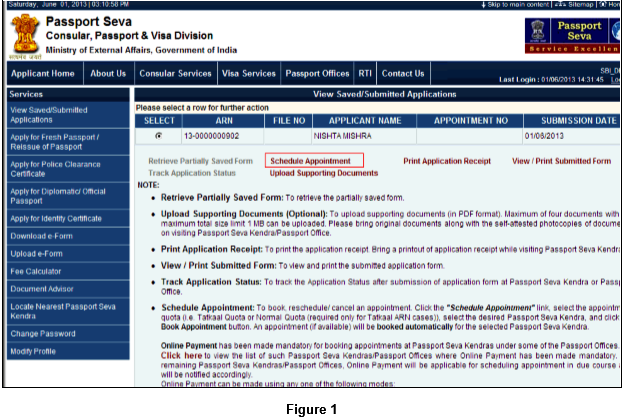
and click the Schedule Appointment link.
3. Select the
Appointment Quota (required only in case of Tatkaal ARNs), and
click the Next button.
4. Select PSK
location whose appointment is sought, enter Captcha characters
displayed, and click the Next button.
Prior payment of
applicable passport service fee has been made mandatory for booking
appointments in Passport Seva Kendras of a few Passport Offices.
For this purpose, the Online Payment feature has been introduced.
The Online Payment functionality will be deployed in an RPO-wise
phased manner.
Online payment
for Passport or related service fee can be done using one of the
following payment modes: e-Payment Modes:
o Internet
Banking (through SBI and associate bank accounts only)
o Debit Card
(Visa and MasterCard only)
o Credit Card
(Visa and MasterCard only) Challan Payment Mode: Bank Challan
(payable at SBI branches in India only)
3.1. Internet
Banking
Applicant needs
to perform the following steps for payment through the Internet
Banking payment mode:
1. Register
through the Passport Seva Online Portal and create the User
Id.
2. Login with
the registered User Id.
3. Click the
Apply for Fresh Passport/Reissue of Passport link under the
Services section.
4. Generate an
ARN under the Normal or Tatkaal scheme either by filling the form
Online or by uploading an e- Form.
5. Attempt to
schedule an appointment by clicking the Schedule Appointment link
on the View Saved/Submitted Applications screen.
6. Select the
‘Appointment Quota’ (Normal/Tatkaal). This option is available only
to the applicants with Tatkaal ARNs.
7. Select the
preferred PSK for appointment booking.
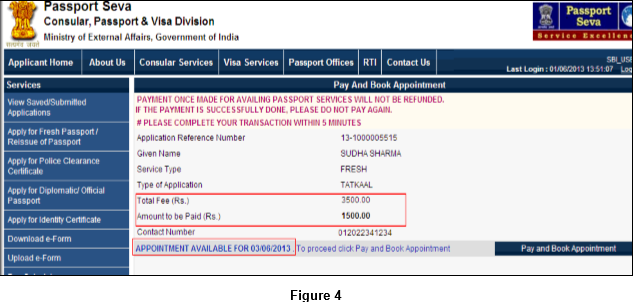
8. System will
display the next available appointment date for the selected PSK.
After verifying the details, click the Pay and Book Appointment
button to redirect to the SBI’s Multi Option Payment System (MOPS)
website. The MOPS screen will be displayed only when appointment is
released for the selected PSK under the desired appointment
quota.
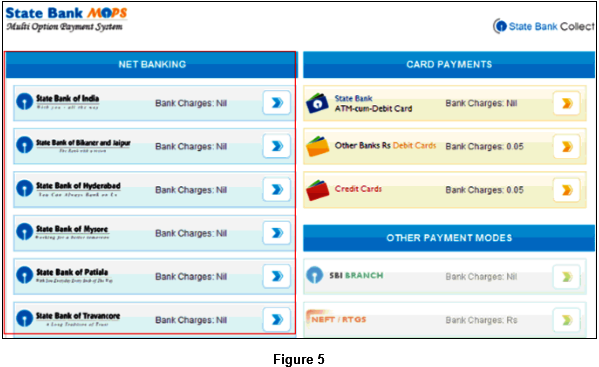
9. Select NET
BANKING as the preferred mode of payment by selecting SBI or any
other SBI associate bank listed in the menu. Login using the
Internet Banking User Id and password to make Online Payment of
indicated passport service fee.
10. Login
through the Internet Banking screen to make Online Payment of
indicated passport service fee.
11. After
successful payment, applicant is redirected to the Passport Seva
Online Portal.
12. The
Appointment Confirmation screen is displayed along with appointment
details.
13. Click the
Print Application Receipt button to print the Appointment Receipt,
which contains details of the payment made along with the Payment
Reference Number as proof of payment.
3.2.
Credit/Debit Card
Applicant needs
to perform the following steps for payment through the Credit/Debit
Card payment mode:
1. Follow Steps
1-8 of Section 3.1 Internet Banking to redirect to the SBI’s MOPS
website. The MOPS screen will be displayed only when appointment is
released for the selected PSK under the desired appointment
quota.
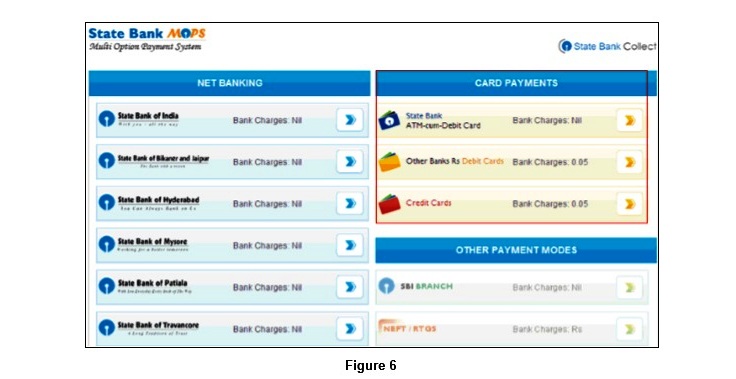
2. Select CARD
PAYMENTS as the preferred mode of payment by selecting the desired
Debit or Credit Card payment option listed in the menu. Login using
the Internet Banking User Id and password to make Online Payment of
indicated passport service fee.
3. Applicant
will need to provide necessary card details as per the following
self-explanatory screens.
4. After
successful payment, applicant is redirected to the Passport Seva
Online Portal.
5. Appointment
Confirmation screen is displayed along with appointment
details.
3.3. Challan
Payment
Citizens
applying for various passport services (Fresh Issuance/Reissue of
Passports/IC/PCC) Online through the Passport Seva Online Portal
have an option of making respective application fee payments at SBI
branches through a system generated Challan. Applicants need to
take a printout of the system generated Challan and submit it at a
nearby SBI branch along with the indicated application fee in cash.
Payment will be reflected after at least two working days of
depositing the fee in the SBI branch. Applicants can try booking
PSK appointments once the Payment Status is displayed as ‘Success’
in the system.
Applicant needs
to perform the following steps for payment through the Challan
payment mode:
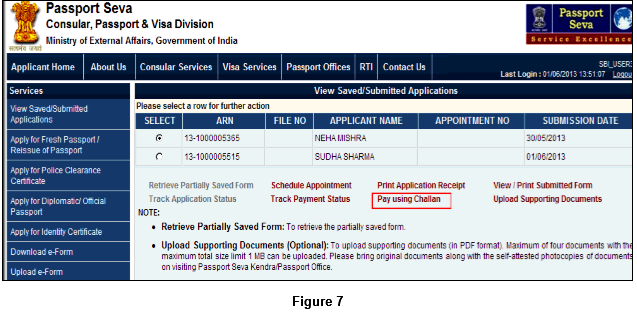
- Follow Steps 1-4
of Section 3.1 Internet Banking to redirect to navigate to the View
Saved/Submitted Applications screen.
2.Click
the Pay using Challan link to navigate
display the Make Payment screen.
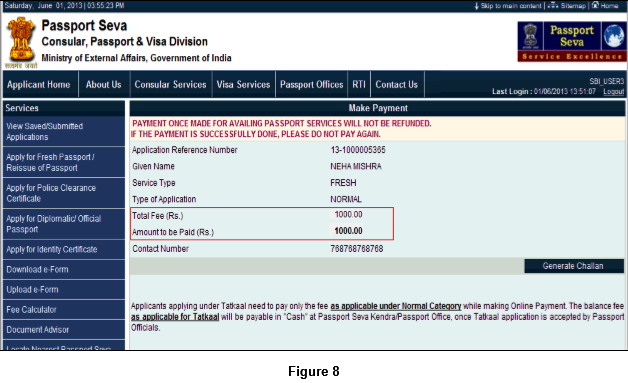
3.Click the
Generate Challan button to generate an SBI Bank
Challan.
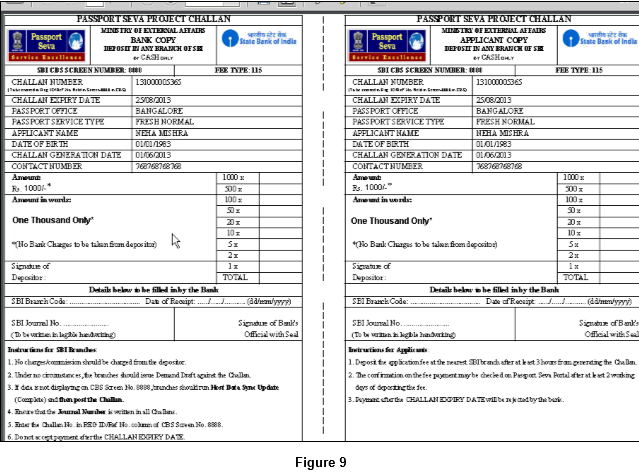
4. Take a
printout of this Challan and deposit the same along with the
indicated amount (in cash) at any of the SBI branch during banking
hours. On deposition, SBI official will enter the fee payment
details in the system. The Transaction ID (Bank Journal Number)
will be generated and noted in both copies of the Challan. One copy
will be kept by the bank and the other copy, duly stamped and
signed by bank official, will be returned to the applicant. The ARN
details printed on the Challan will be validated by SBI and Payment
Status will accordingly be updated in the Passport Seva system
after at least two working days.
5. The
reconciliation process updates Passport Seva Online Portal
regarding Payment Status of the Challan. Applicant will be notified
by an e-mail regarding the actualisation of the Challan.
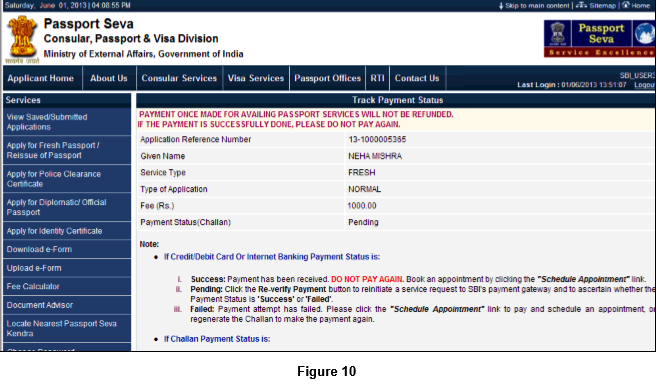
6. Applicant can
also track the status of the Challan using the Track Payment Status
screen
7. Once the
Payment Status is confirmed as ‘Success’, an e-mail will be sent to
the applicant (if e-mail ID has been provided while filling
application form) to book a PSK appointment. Applicant needs to
navigate to the View Saved/Submitted Applications screen and click
the Schedule Appointment link to schedule an
appointment.
8. Select the
‘Appointment Quota’ (Normal/Tatkaal). This option is available only
to the applicants with Tatkaal ARNs.
9. Select the
preferred PSK for appointment booking.
10. Click the
Book Appointment button. An Appointment Slot (if available) is
booked automatically for the selected PSK. Appointment confirmation
screen with appointment details is displayed.
4.
Cancel/Reschedule Appointment
Applicant needs to perform the
following steps for cancelling or rescheduling a booked
appointment:
1. Click the
Schedule Appointment link on the View Saved/Submitted Applications
screen.
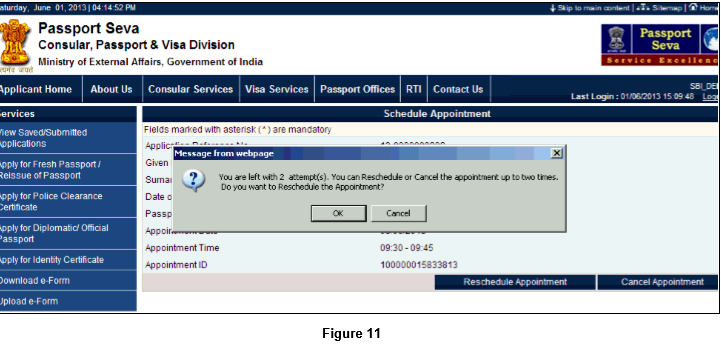
2. Click the
Reschedule Appointment/Cancel Appointment button. A confirmation
message displaying the count of reschedule/cancel attempts left is
shown
3. In case of
rescheduling the appointment, select the preferred PSK and click
the Next button.
4. After checking
the available appointment date displayed for the PSK, click the
Book Appointment button. An appointment (if available) is booked
automatically for the selected PSK and previously booked
appointment for the ARN is automatically
cancelled.
5. The Appointment
Confirmation screen is displayed with the Print Application Receipt
button to print the application receipt
IF ANYONE NEED ONLINE APPOINTMENT FOR ANY PSK IN INDIA THEN CONTACT ME OR REPLY ME